| How to Enter Payment with a Credit Card Using a SREDKey | Credit Card payment information displays in the Payment section. The SREDKey encrypting key pad is attached to user's PC and credit card information is entered by swiping or manually entering the card number. |
|
|
|

| Step 1 |
Credit Card displays in the Select New Payment field
|
| Step 2 |
Click Add button
|
| Step 3 |
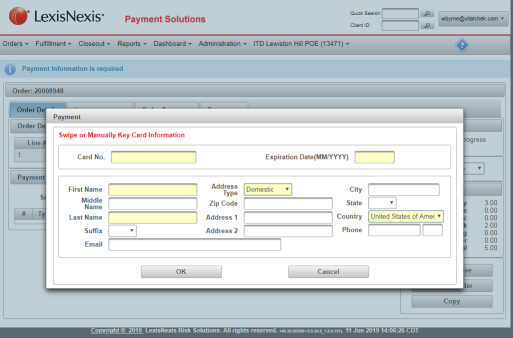
Payment screen with Swipe or Manually Key Card Information message displays
|
| Step 4 |
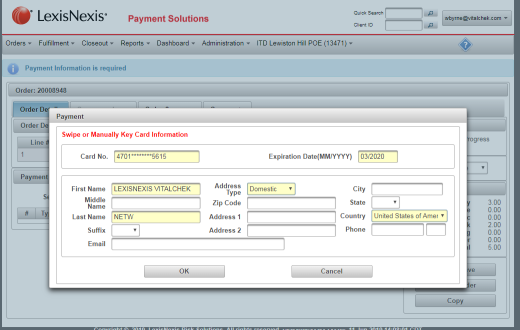
Swipe card through SREDKey Device, required information (yellow fields) autopopulates. Manually enter email address and any additional agency-specific required information
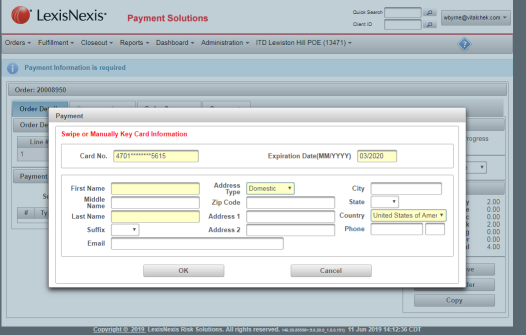
If the credit card will not swipe manually enter the credit card number into the SREDKey. Card No. and Expiration Date autopopulate. Manually type First and Last Names. NOTE: If the card is listed as the company name (with no individual name), enter the company name listed on the card in the First Name field. Enter additional Company name or X in the Last Name fields.
|
| Step 21 |
Click OK button
|
| Step 22 |
Credit card payment information is displayed in Payment section
|
| Step 23 |
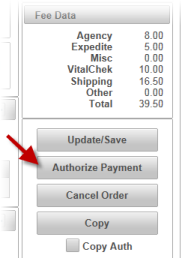
Authorize Payment button will display, click to authorize payment
|
| Step 24 |
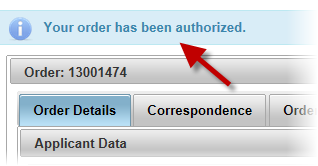
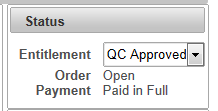
Order is authorized and the following is displayed: Authorized message appears: Payment Status changes to Paid in Full:
Payment information in Status section displays Authorized
|